
Chrome extension
The handoff into Suno
The AIMusicMaker extension fills Suno's create form from a track you planned in the desktop app, so nothing is copied and pasted by hand. It talks only to AIMusicMaker on your own machine, reads your library without changing it, and stays out of the way when the app is closed. How to add it
- 01
The picker shows the library hierarchy
Artist, album, track: the library as organised locally.
Press Fill from AIMusicMaker in the corner of Suno's create page. The picker lists every track under its artist and album, with the album made most recently first, since that is almost always the one being made. Type in the filter to narrow it by track, album or artist.
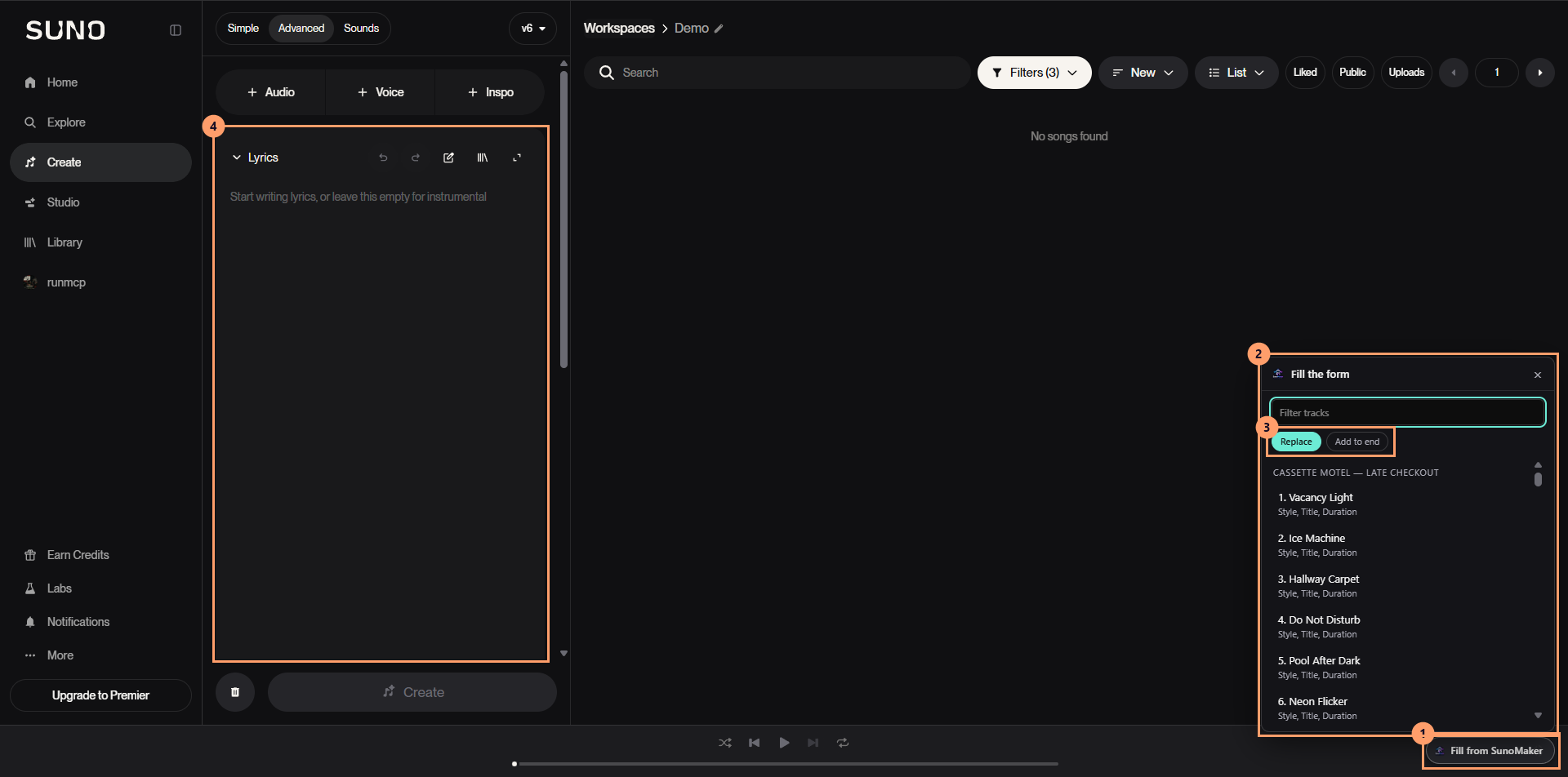
Chrome extension in Suno - Fill from AIMusicMaker, the button the extension adds to Suno.
- The library picker lists tracks by artist and album, with a filter at the top.
- Replace what is already in Suno's form, or add to the end of it.
- Choosing a track fills Suno's fields. Under each track, the picker lists the fields it will fill.
- 02
Choose a track
One track is selected from the hierarchy.
Choose Replace or Add to end first: it applies to this fill, not to one track. Under each track the picker lists the fields it can fill, so an unfinished track is obvious before you pick it.
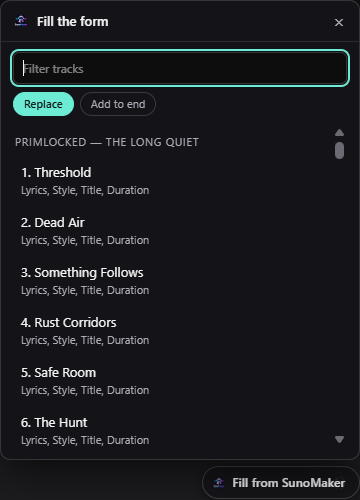
Choosing a track - The filter narrows the list by track, album or artist as you type.
- Replace or Add to end, chosen once for the whole fill. Replace is on here, so Suno's form is overwritten.
- A track, with the fields it can fill listed under it. Choosing it starts the fill.
- Fill from AIMusicMaker, the button that opened the picker.
- 03
Its fields land in Suno
Title, style prompt and lyrics are placed into the matching fields in Suno.
Every field the page has and the track has an answer for is filled in one go, including the target length where Suno shows a duration. To fill just one field, use the small AIMusicMaker button on that field instead.
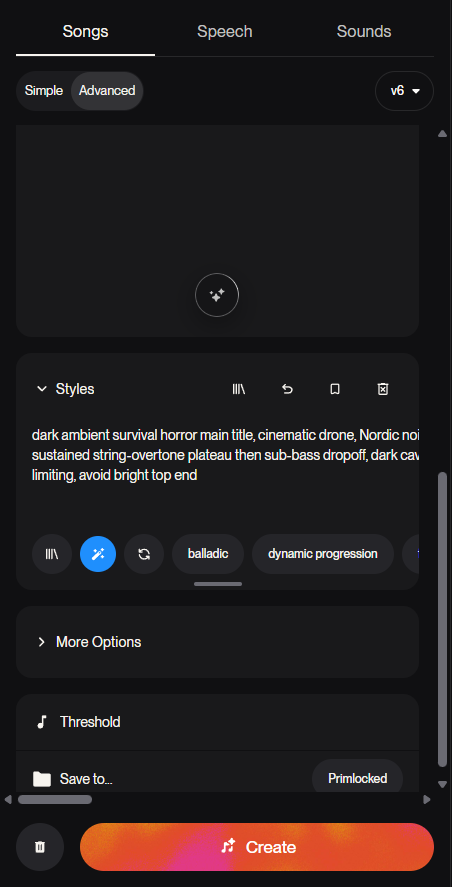
After the fill - Styles now holds Threshold's Suno style prompt.
- The target length goes into the duration under More Options, closed in this shot.
- The song title reads Threshold, the track's title.
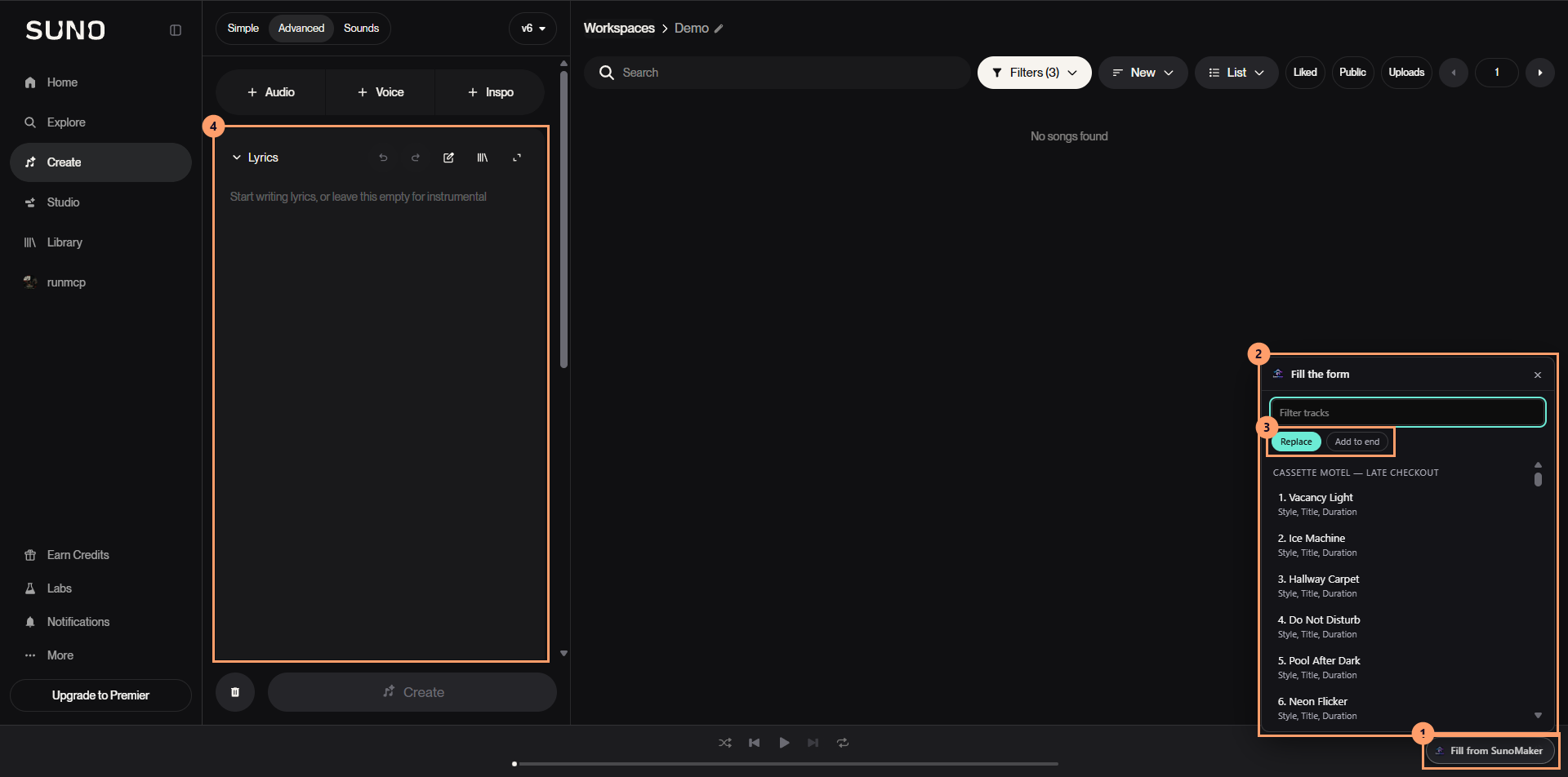
Field mapping
| Field | From the library | Into Suno |
|---|---|---|
| Title | Track title | Suno title |
| Style prompt | Suno style prompt | Suno style |
| Lyrics | Lyrics | Suno lyrics |
| Duration | Target length (seconds) | Suno duration |