
Chrome extension for Suno

One artist's sound, held across every track.

AIMusicMaker lets you develop a unique sound for an artist, then create and manage albums that stay consistent from one track to the next. With the Chrome extension, all of it transfers straight into Suno, so you can generate whole albums quickly without losing that consistency.

AIMusicMaker is an independent tool. It is not affiliated with, endorsed by or sponsored by Suno.

Step by step

Where each step happens in the app

  1. 01 / Artist

    Start with the artist's lasting sound.

    An artist holds its name, a one-line summary and the base technical style every album starts from. Its page shows each album as a card, with how far along it is and the next thing to do.

    Artist in the docs
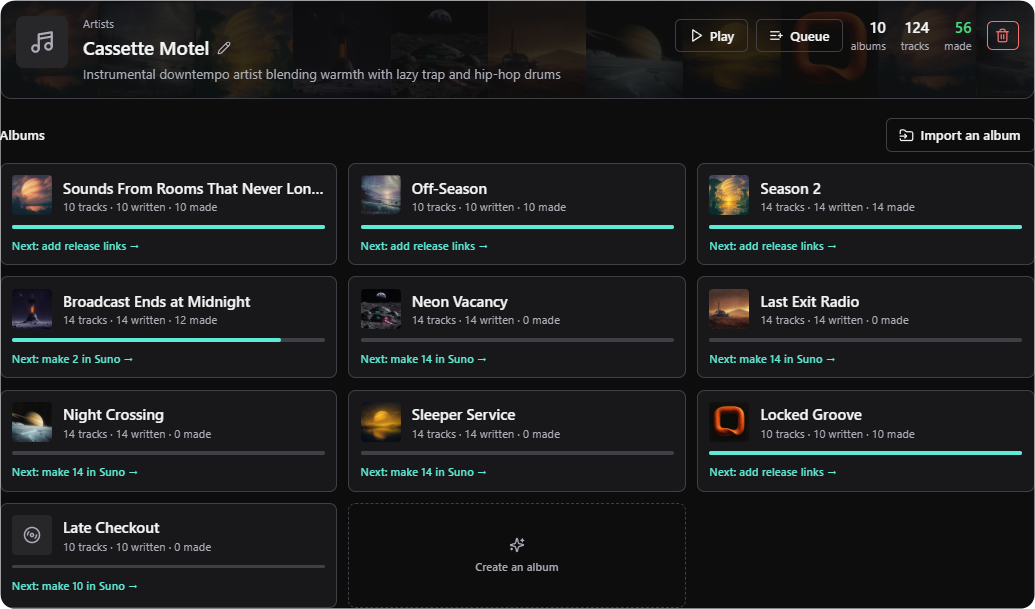
    The artist Cassette Motel, with its summary, its album, track and made counts, and a card for each of its albums.
    An artist
    1. The artist: its name and a one-line summary of its sound.
    2. Play and Queue the whole artist.
    3. How many albums and tracks it has, and how many are made in Suno.
    4. Each album as a card, with how far along it is and the next thing to do, here "Next: make 2 in Suno".
    5. Create an album adds the next record.
  2. 02 / Album

    Give the album its own direction.

    An album's Record tab holds its own technical style, beside the artist style it inherits. Generate from the tracks writes that style from the album's track list. Artwork and Release have tabs of their own.

    Album in the docs
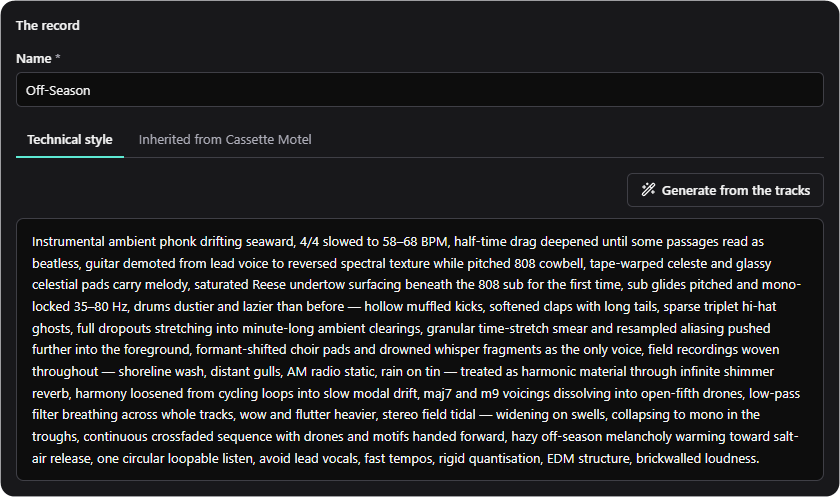
    The Record tab of the album Off-Season, showing its technical style and the Generate from the tracks button.
    The Record tab
    1. The album's name, the one thing it has to have.
    2. Its own technical style, with the style it inherits from the artist on the tab beside it.
    3. Generate from the tracks writes the album's style from its track list.
    4. The technical style: what is different about this record.
  3. 03 / Track

    Write what Suno needs for each track.

    Each track keeps its title, length, Suno style prompt and lyrics, with notes of your own that are never sent to Suno.

    Track in the docs
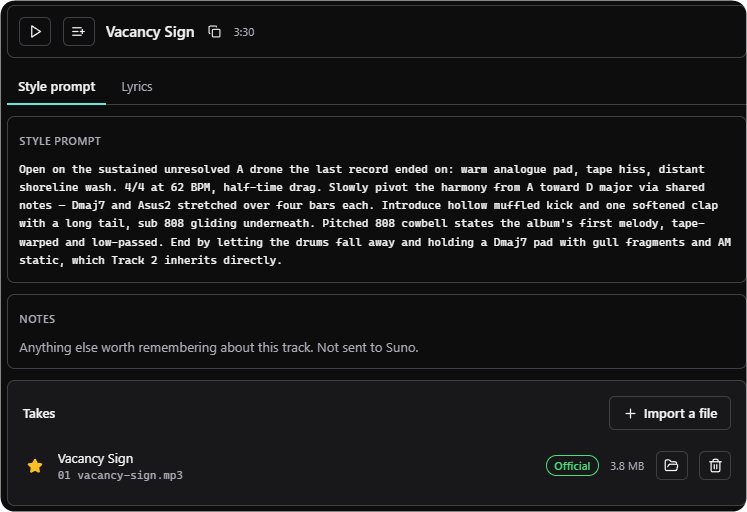
    The track Vacancy Sign, 3:30, with its Style prompt and Lyrics tabs, its notes, and its takes.
    A track
    1. The track's title and length, with Play and Queue beside them.
    2. The style prompt and the lyrics, each on a tab of its own.
    3. The Suno style prompt, the text that goes into Suno's Styles field.
    4. Notes of your own. They are never sent to Suno.
  4. 04 / Extension

    Fill Suno's form from your library.

    On Suno's Create page, Fill from AIMusicMaker opens a picker of your tracks by artist and album. Choose one to fill Suno's fields, replacing what is there or adding to the end of it.

    Extension in the docs
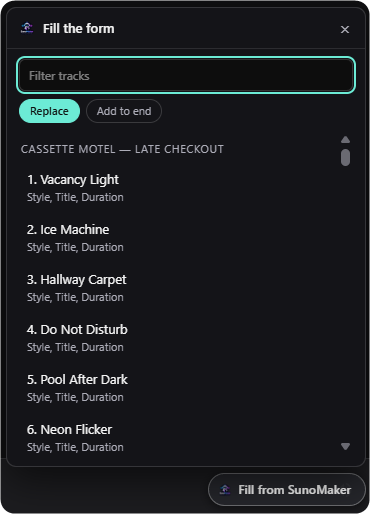
    The extension's Fill the form picker in Suno, listing the tracks of Late Checkout and the fields each one fills.
    The picker
    1. The filter narrows the list by track, album or artist as you type.
    2. Replace what is already in Suno's form, or add to the end of it.
    3. A track, with the fields it will fill listed under it. Choosing it starts the fill.
    4. The button the extension adds to Suno, which opened the picker.
  5. 05 / Takes

    Bring the takes back.

    Import takes, or drop a batch of audio files on the page. Each file lands on the track it is named after, and every track shows how many takes have come back.

    Takes in the docs
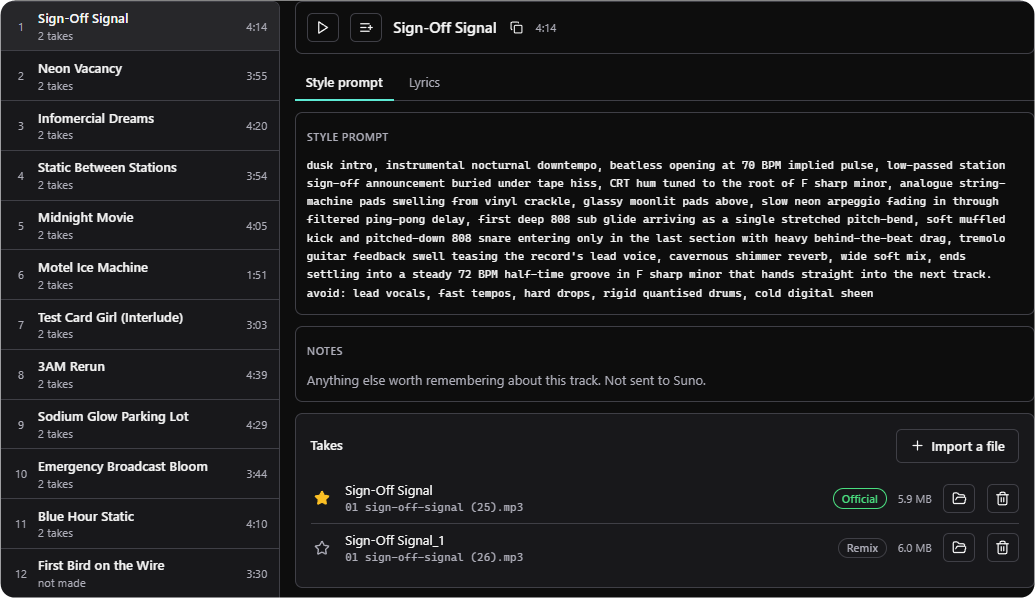
    An album track list with two takes on each track, and both takes of Sign-Off Signal listed under it.
    Takes on an album
    1. Every track on the album, with how many takes have come back, or "not made" if it has not been made in Suno yet.
    2. Import a file, or drop a batch of audio files anywhere on the page. Each lands on the track it is named after.
    3. The takes that have come back for the selected track.
  6. 06 / Definitive take

    Star the take that becomes the track.

    The starred take is the definitive one, marked Official. The other takes stay with the track under labels of their own, such as Remix.

    Definitive take in the docs
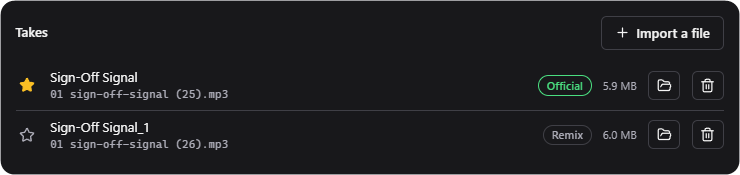
    Two takes of Sign-Off Signal: the first starred and marked Official, the second marked Remix.
    The definitive take
    1. The star picks the definitive take.
    2. The starred take is marked Official.
    3. The other takes stay with the track. This one is labelled Remix.
  7. 07 / Release

    Add the release links.

    When the record is out, its Apple Music, Spotify and YouTube Music links go on the album. Until then, its card says what is next.

    Release in the docs
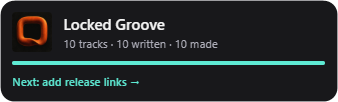
    The album card for Locked Groove, 10 tracks all made, reading Next: add release links.
    An album card
    1. Locked Groove: 10 tracks, all written and all made.
    2. So the card says what is next: add the release links.

The handoff

Move a planned track into Suno.

Choose a track in the Chrome extension's library picker. AIMusicMaker places that track's title, lyrics, and style prompt into the matching fields in Suno.

The extension is the bridge between the decisions made in the desktop app and the version you can listen to, assess, and keep.

See the extension walkthrough

The record

Keep the decisions with the music.

01 / Artist

Set the lasting sound.

An artist holds a name, a base technical style, and the reference tracks that shaped it.

02 / Album

Give this record its own direction.

An album captures what changes for this release: its direction, artwork, and later its release links.

03 / Track

Prepare the details Suno needs.

Every track keeps its title, prompt, lyrics, target length, and the takes that return from Suno.

After Suno

Choose the take that becomes the track.

Bring finished audio back to the local library, compare the returned takes, and mark the one that represents the song. The record stays connected to its artwork and release links.

When the record is out, its Apple Music, Spotify and YouTube Music links go on the album.